Share & Generate Passwords in Microsoft Teams
No subscription required — available free to all Microsoft Teams users.

Free Features How-To
These features are available for free inside Microsoft Teams — no subscription needed.
DBit's free tier lets any Microsoft Teams user securely share a one-time password or generate a strong password directly inside a Teams chat or channel, without ever sending credentials in plain text.
For the full Password Manager — private and shared vaults, 2FA, SSO, admin controls and more — see the Password Manager Tutorials or view pricing.
Share Password
Send a password securely through Microsoft Teams. The recipient gets a one-time link that expires automatically.
Step 1 — Open DBit in Teams chat
Click the DBit icon in the Teams chat compose bar and select "Share a password".
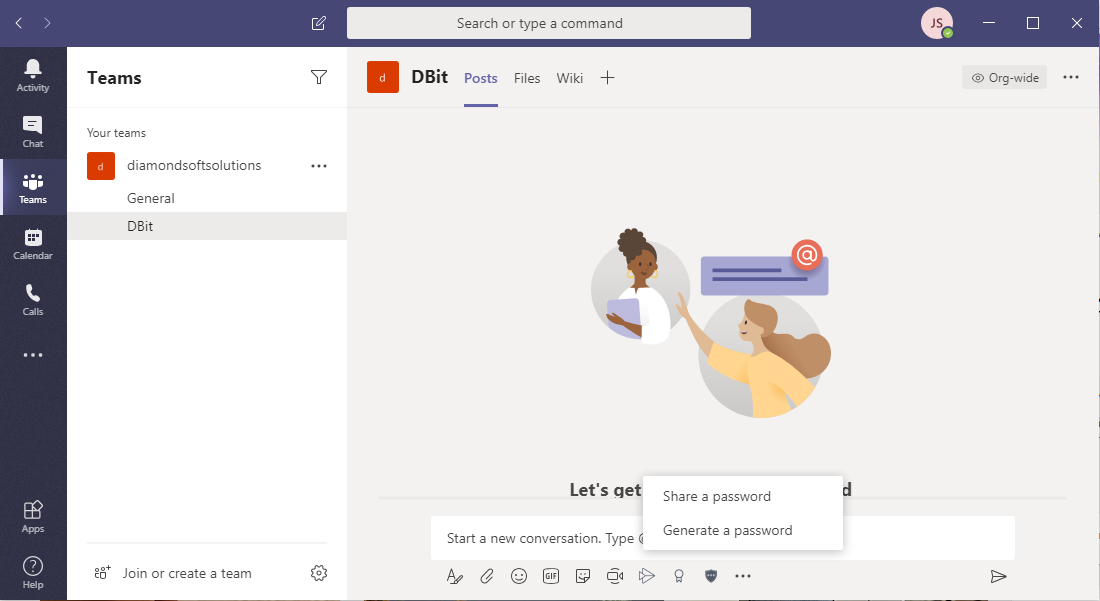
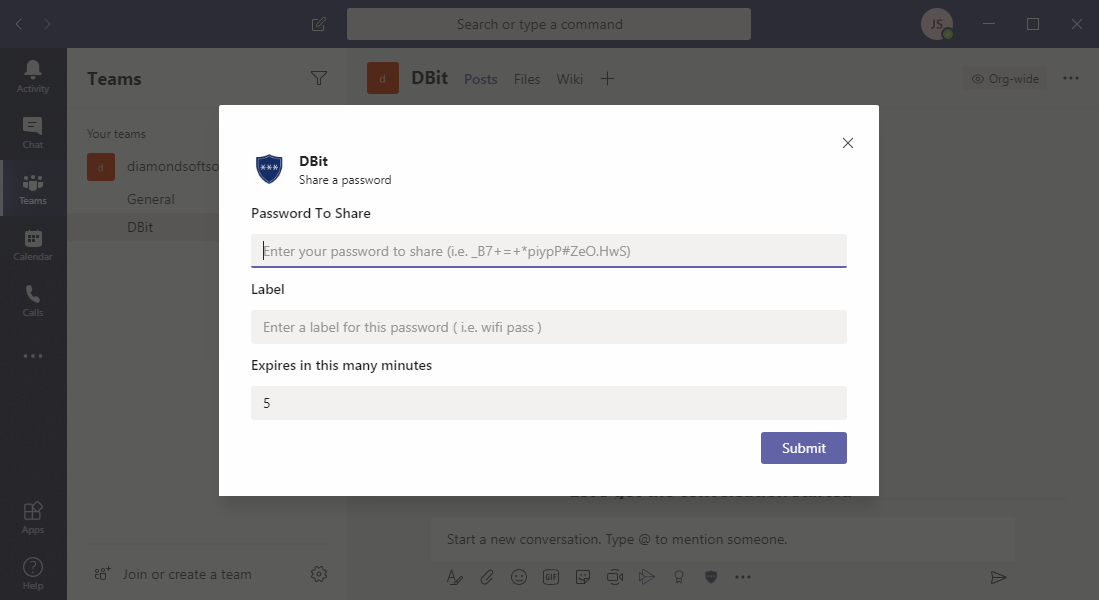
Step 2 — Fill in the form
Enter the following:
Password To Share — the credential you want to send
Label — a custom name or description
Expires in (minutes) — the password link becomes invalid after this many minutes (default: 5 minutes)
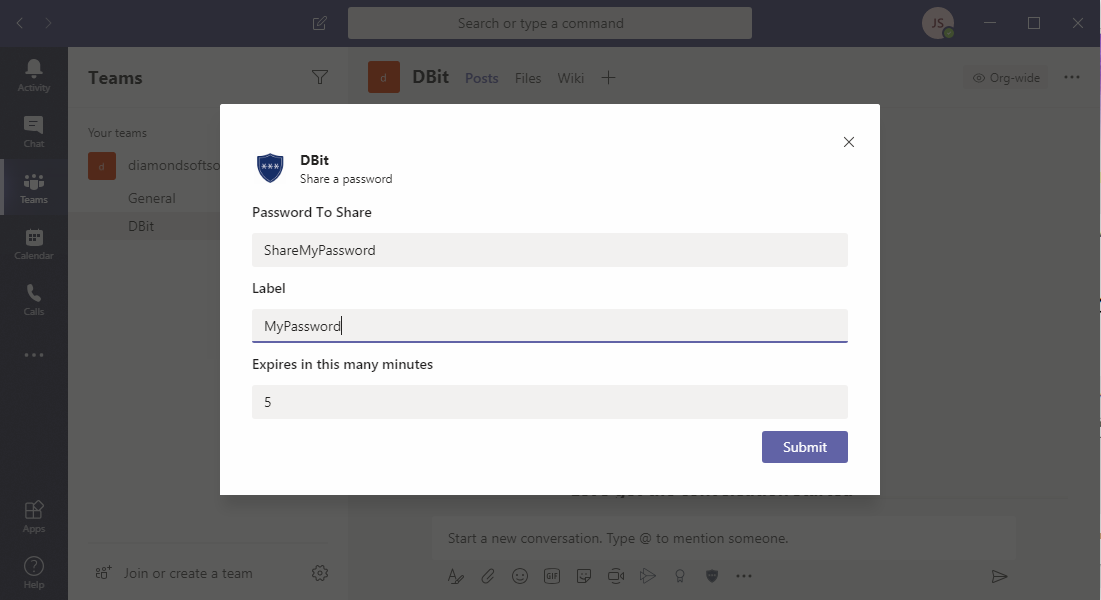
Step 3 — Submit
Click Submit to generate the secure link.
Step 4 — Send the message
Click Send message to deliver the secure password link to the recipient in the Teams chat.
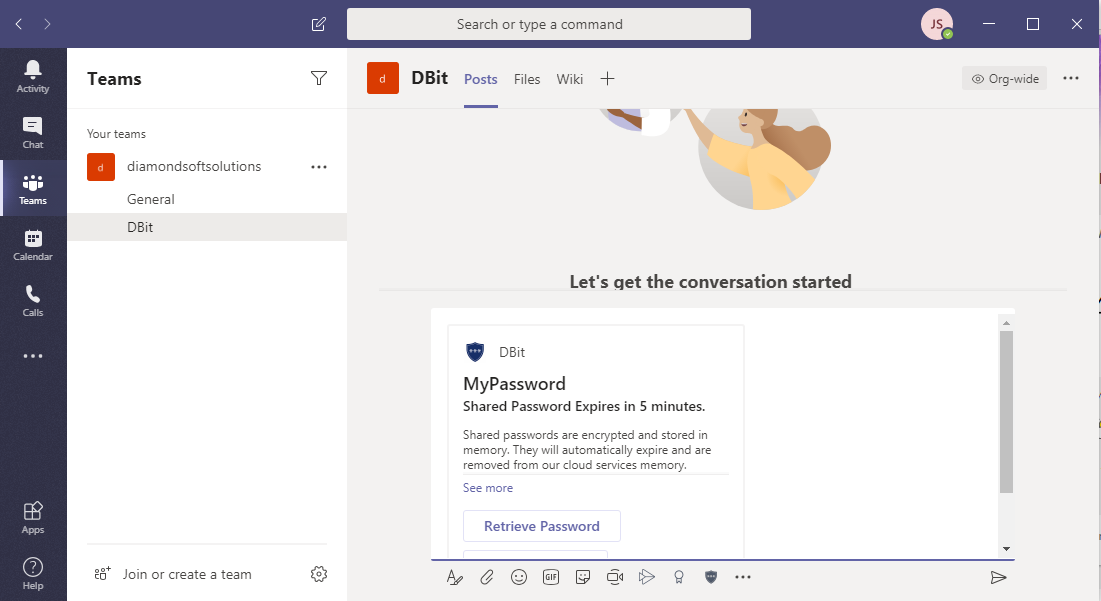
Step 5 — Recipient retrieves the password
The recipient clicks "Retrieve Password" within the time limit to view it.
The sender can click "Force Expiration" at any time to revoke access immediately, regardless of the timer.
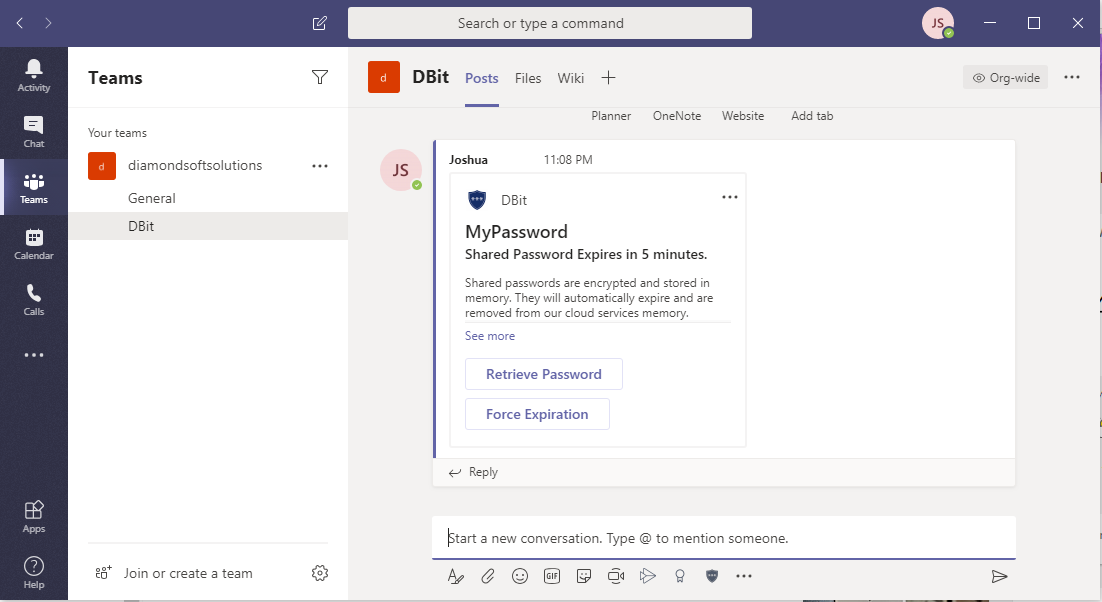
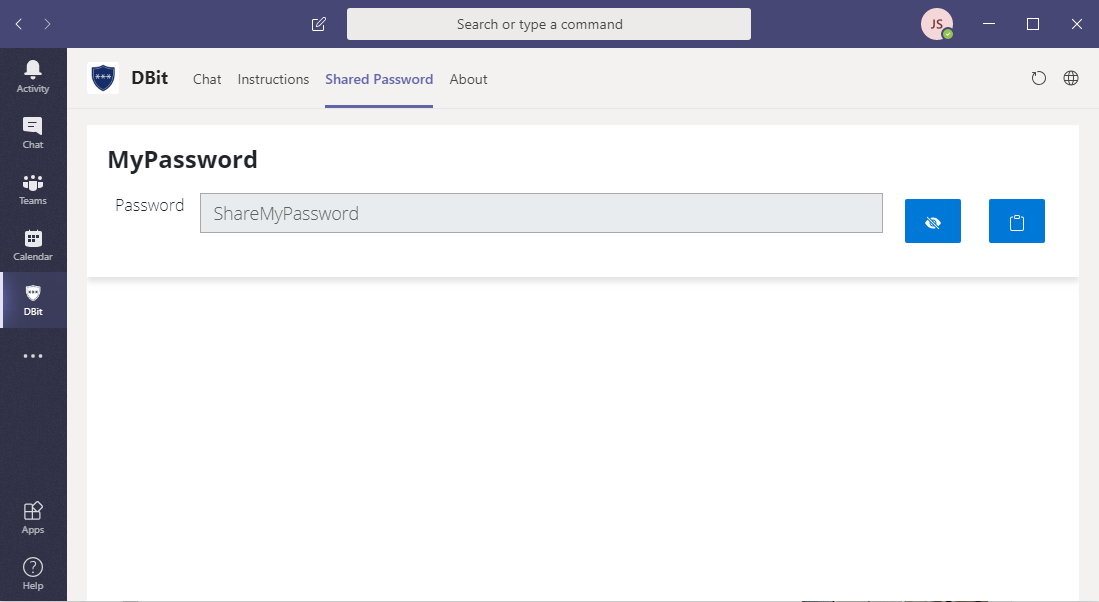
Step 6 — View the password
The recipient can reveal or copy the password from the Show Password view.
Generate Password
Create a strong, random password and share it securely through Teams in one step.
Step 1 — Open DBit in Teams chat
Click the DBit icon and select "Generate a password".
Step 2 — Configure the generator
Enter the following:
Length — number of characters in the generated password
Label — a custom name or description
Include Special Characters — toggle on/off
Expires in (minutes) — how long the link stays active (default: 5 minutes)
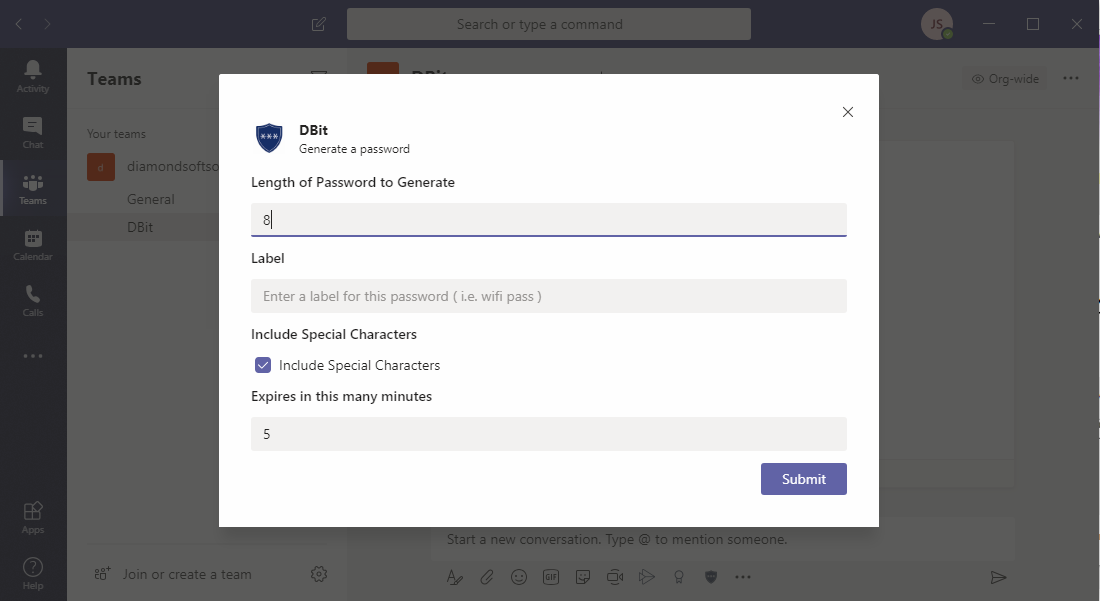
Step 3 — Submit
Click Submit to generate the password and create the secure link.
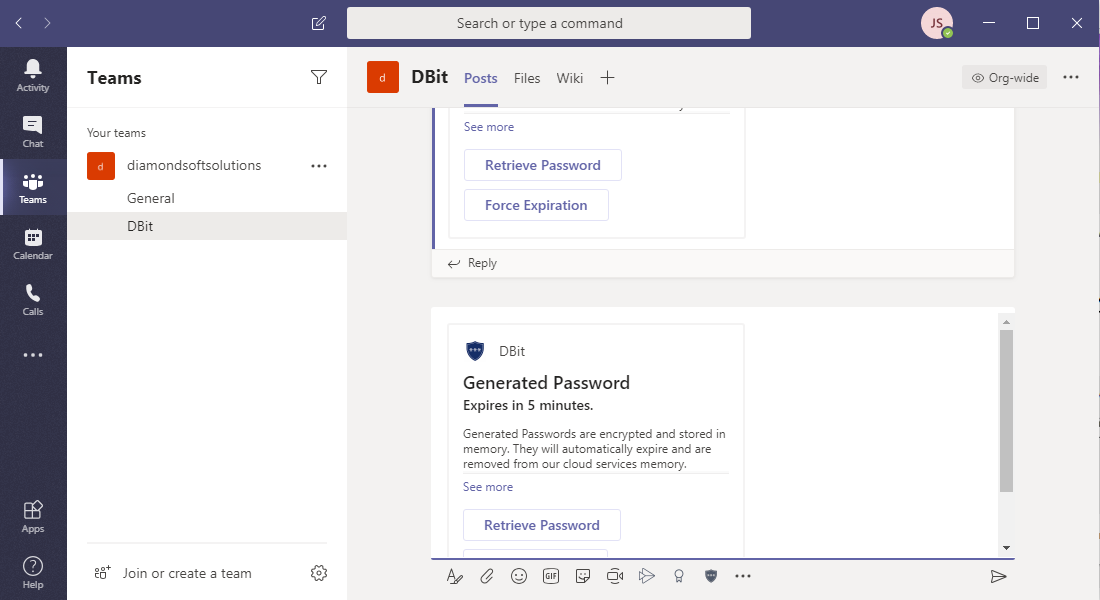
Step 4 — Send the message
Click Send message to deliver the generated password link in the Teams chat.
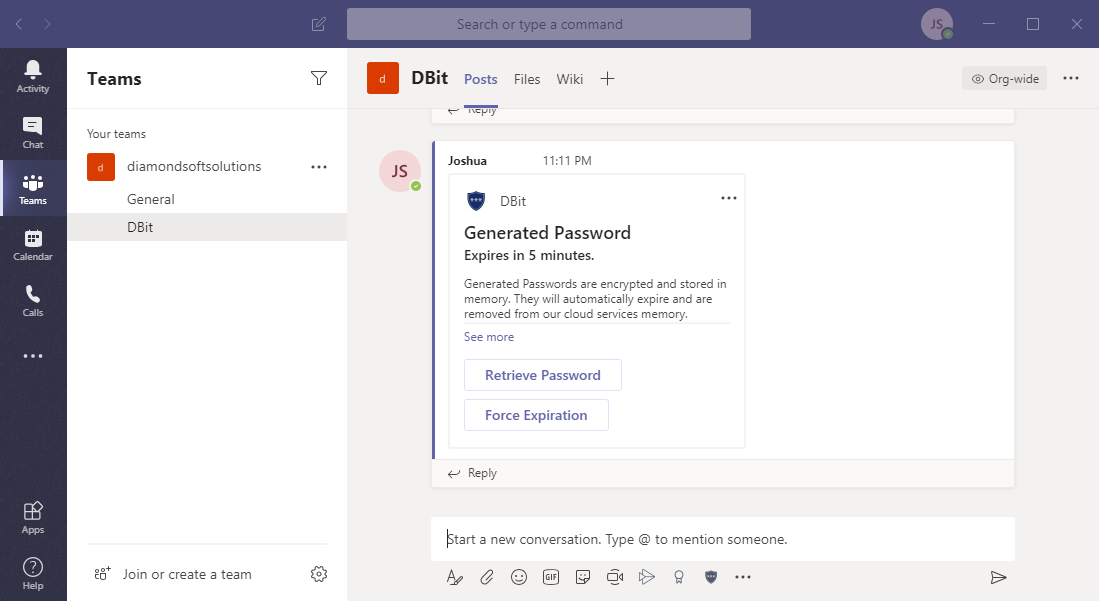
Step 5 — Recipient retrieves the password
The recipient clicks "Retrieve Password" within the time limit to access it.
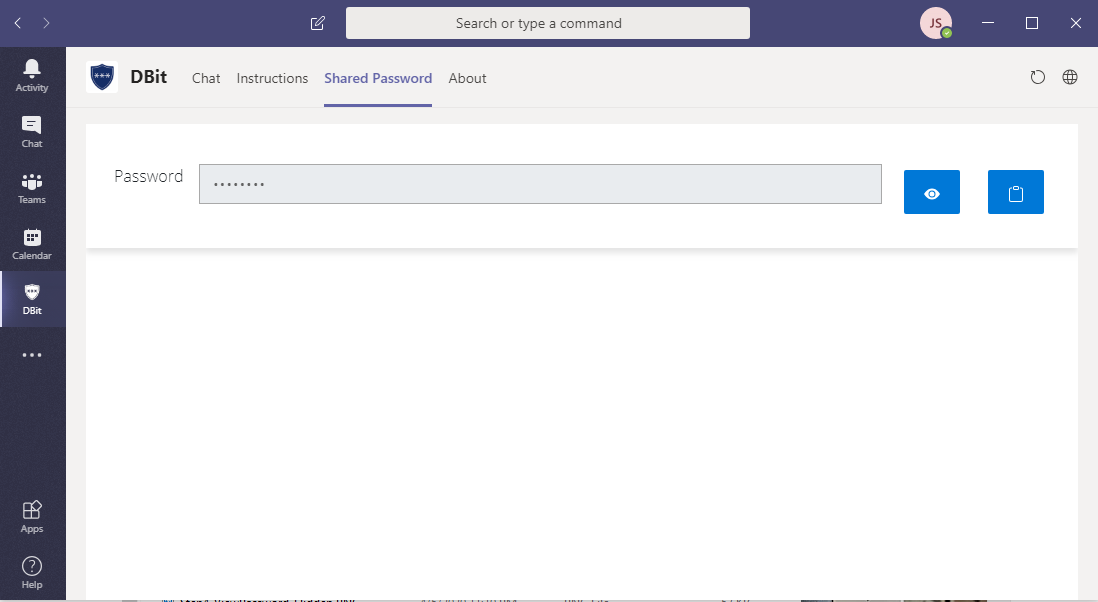
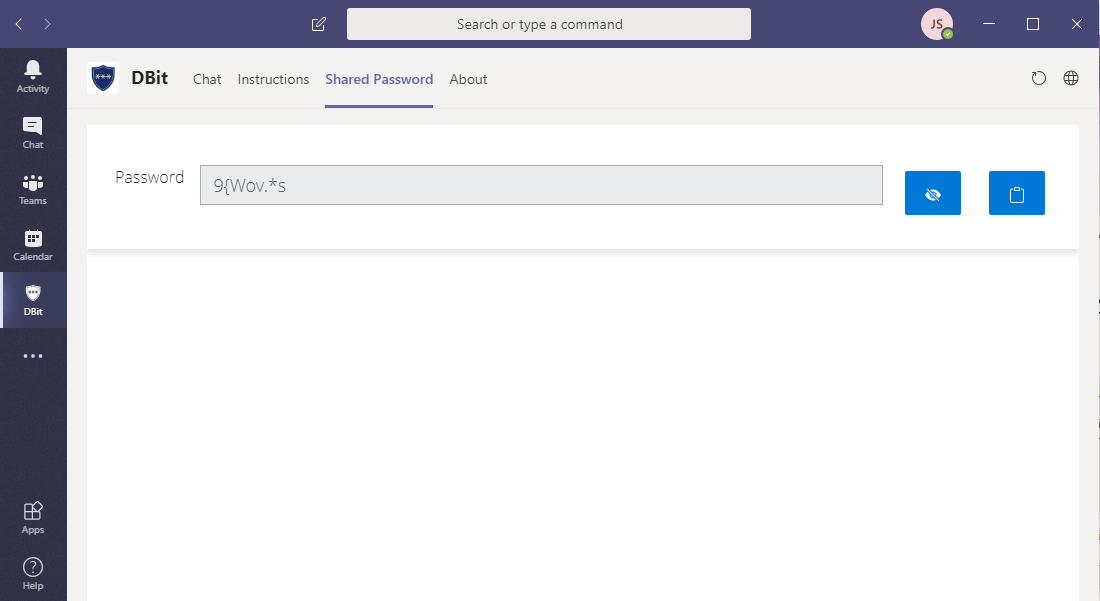
Step 6 — View the password
Reveal or copy the generated password from the Show Password view.
Upgrade to the full DBit Password Manager for Microsoft Teams and Web.
Password Manager Tutorials View Pricing